

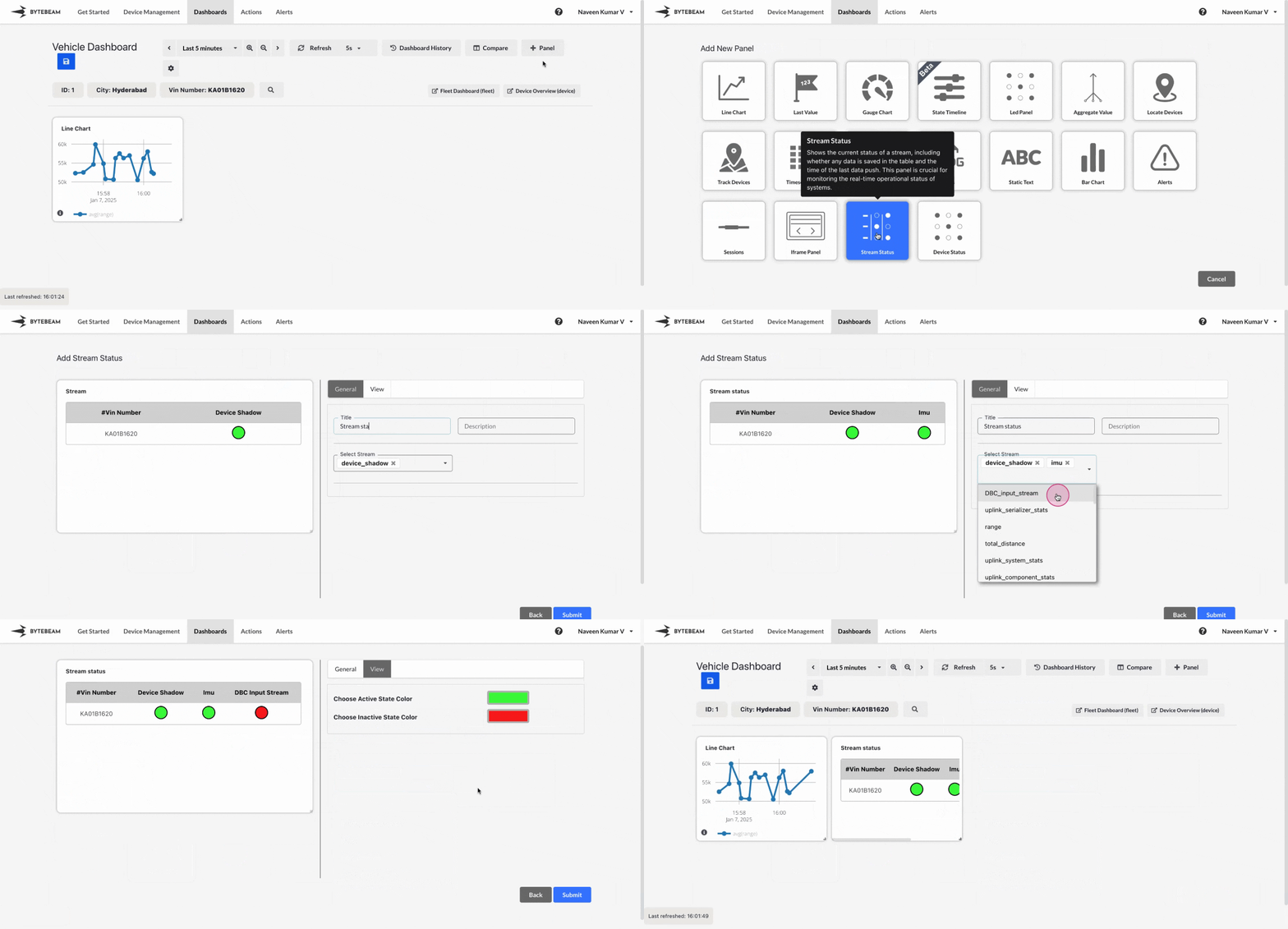
Add Stream Status Panel
1
Navigate to Dashboards
Go to the Dashboards tab, select the desired dashboard, and click on the + Panel button to create a new panel.
2
Select Stream Status Panel
Choose Stream Status Panel from the list of available panels.
3
Configure Streams
- Add a title for the panel.
- Select one or more streams to monitor by choosing them from the dropdown menu.
- Each stream’s status will be displayed as active (green) or inactive (red) in the preview.
4
Customize Status Colors
- Navigate to the View tab to set the colors for the active and inactive states of streams.
- The default colors are green for active and red for inactive, but these can be customized to suit your preferences.
5
Preview and Submit the Panel
- Preview the Stream Status Panel to ensure the selected streams and status indicators are correctly displayed.
- Once satisfied, click Submit to add the Stream Status Panel to the dashboard.
The panel will now show real-time stream statuses in the dashboard layout.
The Stream Status Panel is ideal for monitoring multiple streams in real-time to ensure smooth data flow and detect potential issues quickly.