

- Display whether a device or component is online (active) or offline (inactive).
- Indicate the status of sensors, machines, or other equipment.
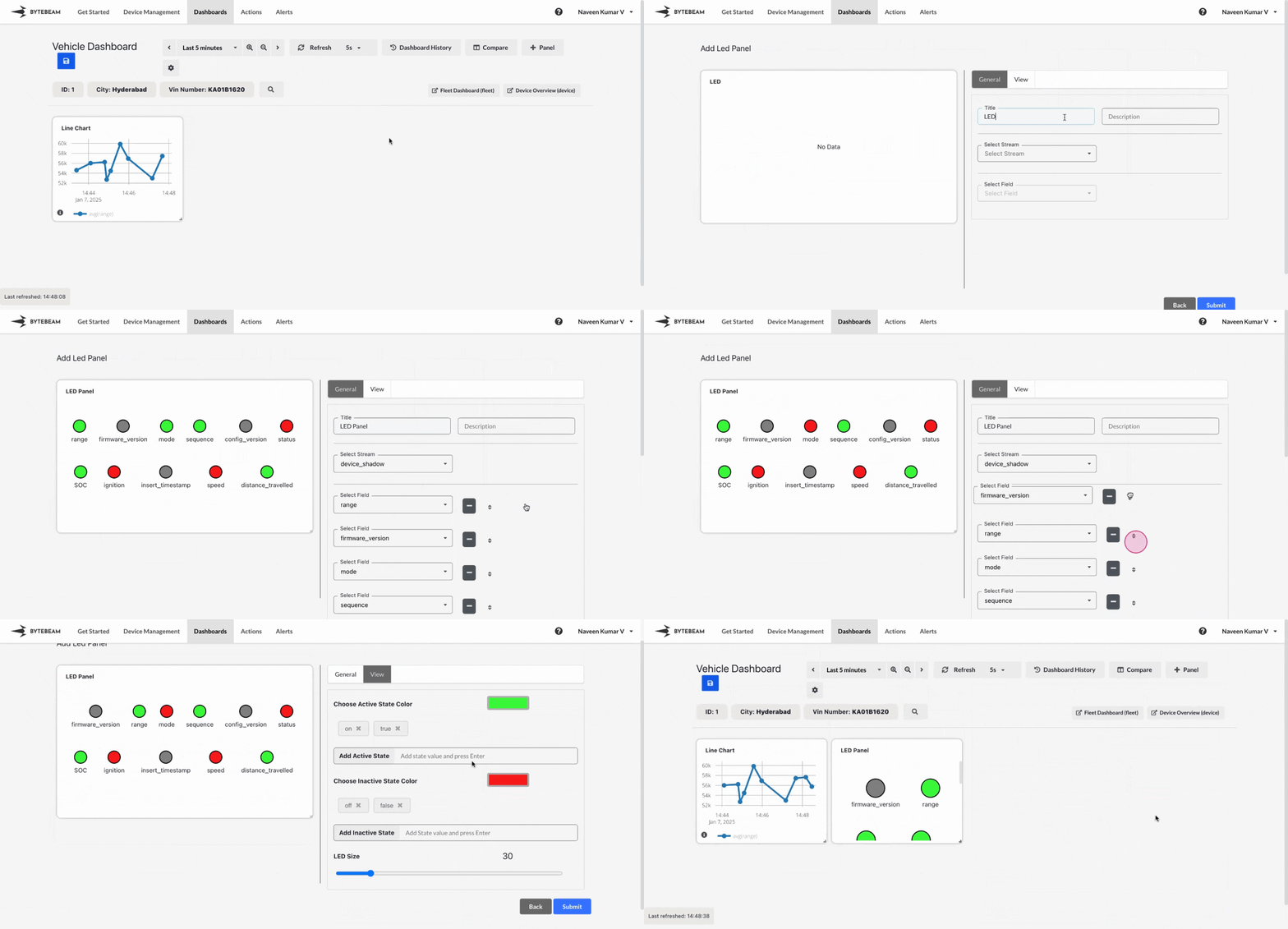
Add LED Panel
1
Navigate to Dashboards
Go to the Dashboards tab, select the desired dashboard, and click on the + Panel button to create a new panel.
2
Select LED Panel
Choose LED Panel from the list of available panels.
3
Configure General Settings
You will be presented with options to configure:
- Title: Add a descriptive title for the panel.
- Stream: Select the data stream to visualize.
- Fields: Choose the fields or columns to represent as LED indicators.
For example, the LED will be green for states such as'true',1, or'on'.
4
Customize View Settings
Switch to the View tab to adjust the visual appearance of the panel:
- Active State Color: Choose a color for the active state (e.g., green for “on”).
- Inactive State Color: Choose a color for the inactive state (e.g., red for “off”).
- Add Custom States: Add specific states that define active or inactive conditions.
- LED Size: Adjust the size of the LED indicators for better visualization.
5
Submit the Panel
After completing the configurations and customizations, click Submit to add the LED Panel to the dashboard.