> ## Documentation Index
> Fetch the complete documentation index at: https://bytebeam.io/docs/llms.txt
> Use this file to discover all available pages before exploring further.
# Triggering Actions on a Device
> Steps on how to trigger an OTA update in Bytebeam console
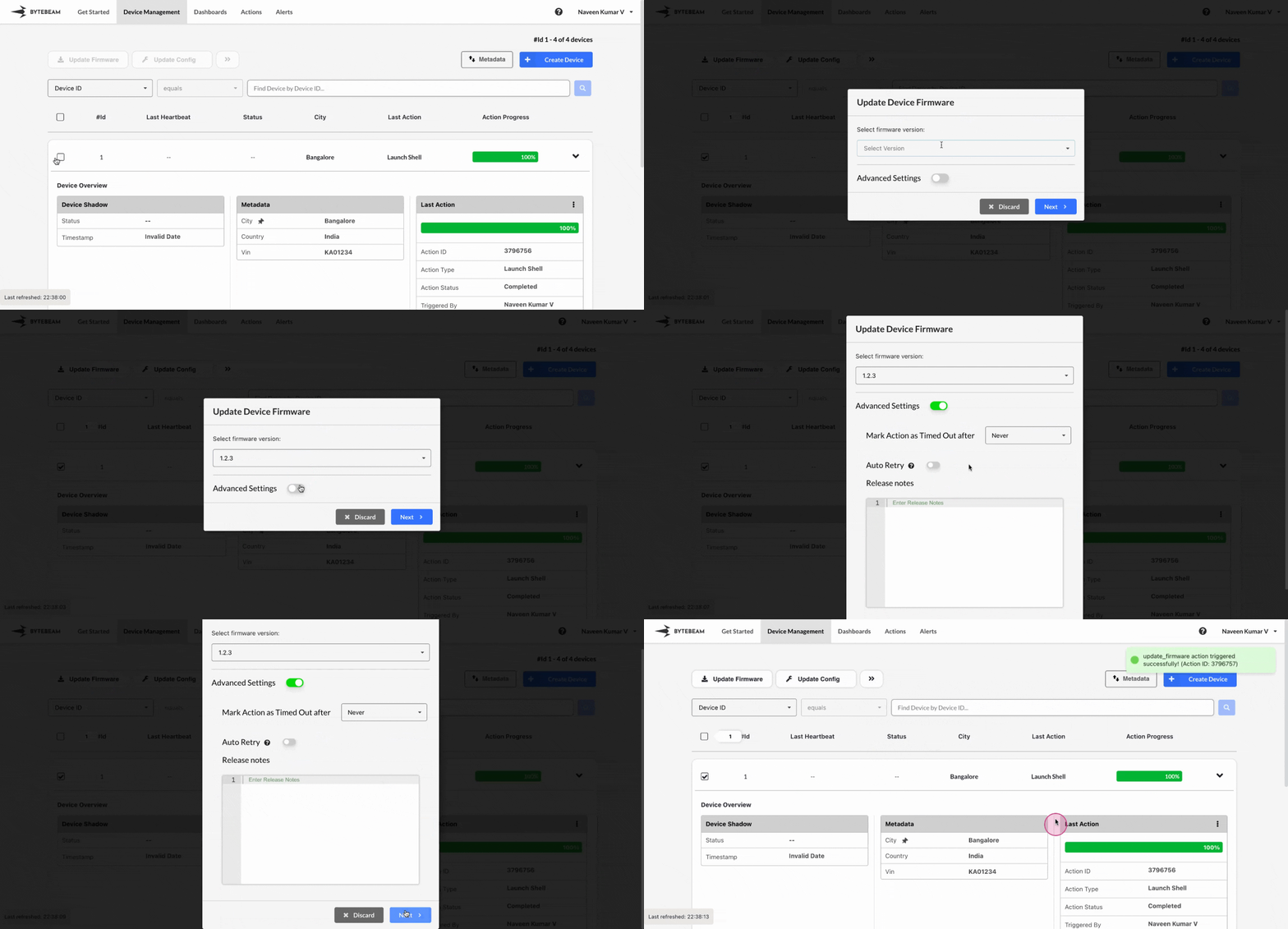
You can initiate various actions, such as updating firmware, updating configuration, or updating geofence settings, by selecting devices in the Bytebeam console. Below are the steps to trigger an OTA (Over-the-Air) update, specifically for updating firmware.
Steps to Trigger the OTA Update:
Click on the **Device Management** tab at the top.
Find the devices using pagination if needed. Select the devices by clicking the checkboxes, or use the **Select All** checkbox to select all visible devices.
To narrow down results, use filters based on metadata keys or Device IDs, then select the filtered devices.
Click on the **Update Firmware** button. Choose the **Firmware Version** or **Firmware Bundle Version** (if Device Components is enabled), then click on **Next**.
Click on the **Confirm** button to initiate the firmware update on the selected devices.
## Important Info
Options like Auto Retry or setting a timeout for the action can be configured in the Advanced Settings section on the Update Device Firmware modal.
You can monitor the action’s progress for each device in the Devices table.