> ## Documentation Index
> Fetch the complete documentation index at: https://bytebeam.io/docs/llms.txt
> Use this file to discover all available pages before exploring further.
# Deleting a Dashboard
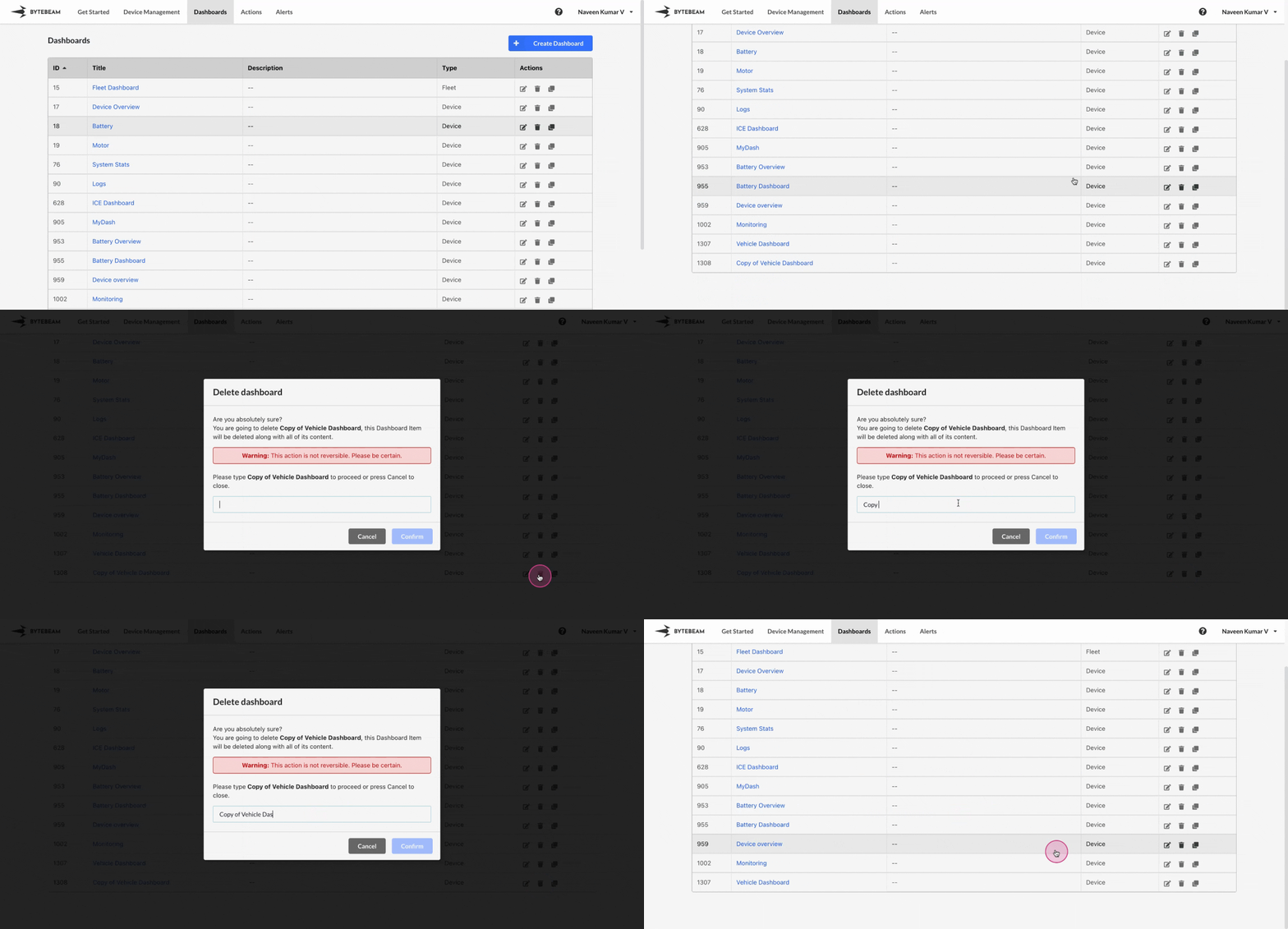
To delete a dashboard in the Bytebeam console, follow these steps carefully:
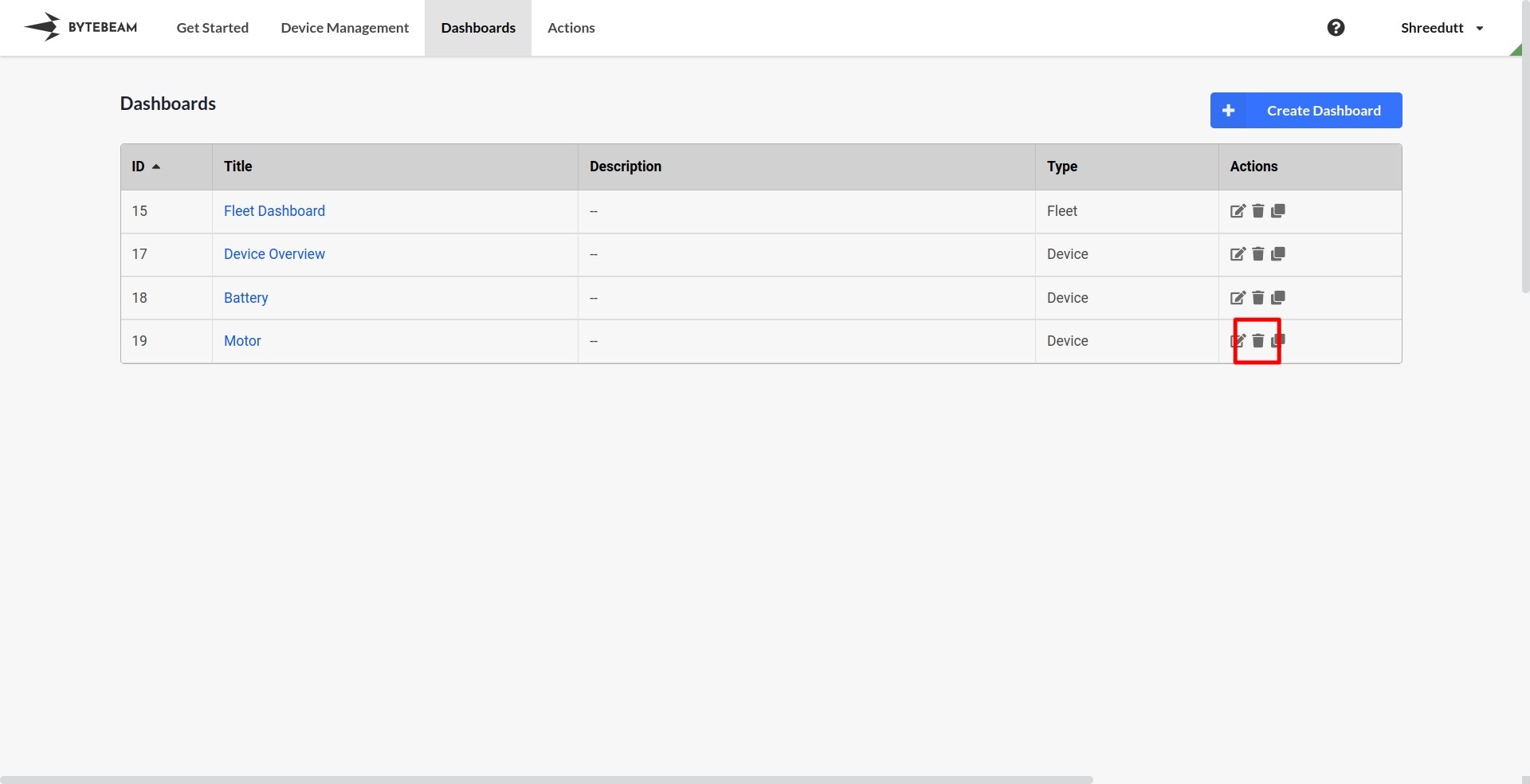
Go to the **Dashboards** tab in the Bytebeam console to view the list of available dashboards.
Locate the dashboard you wish to delete and click on the **Trash 🗑 icon** next to it.\\
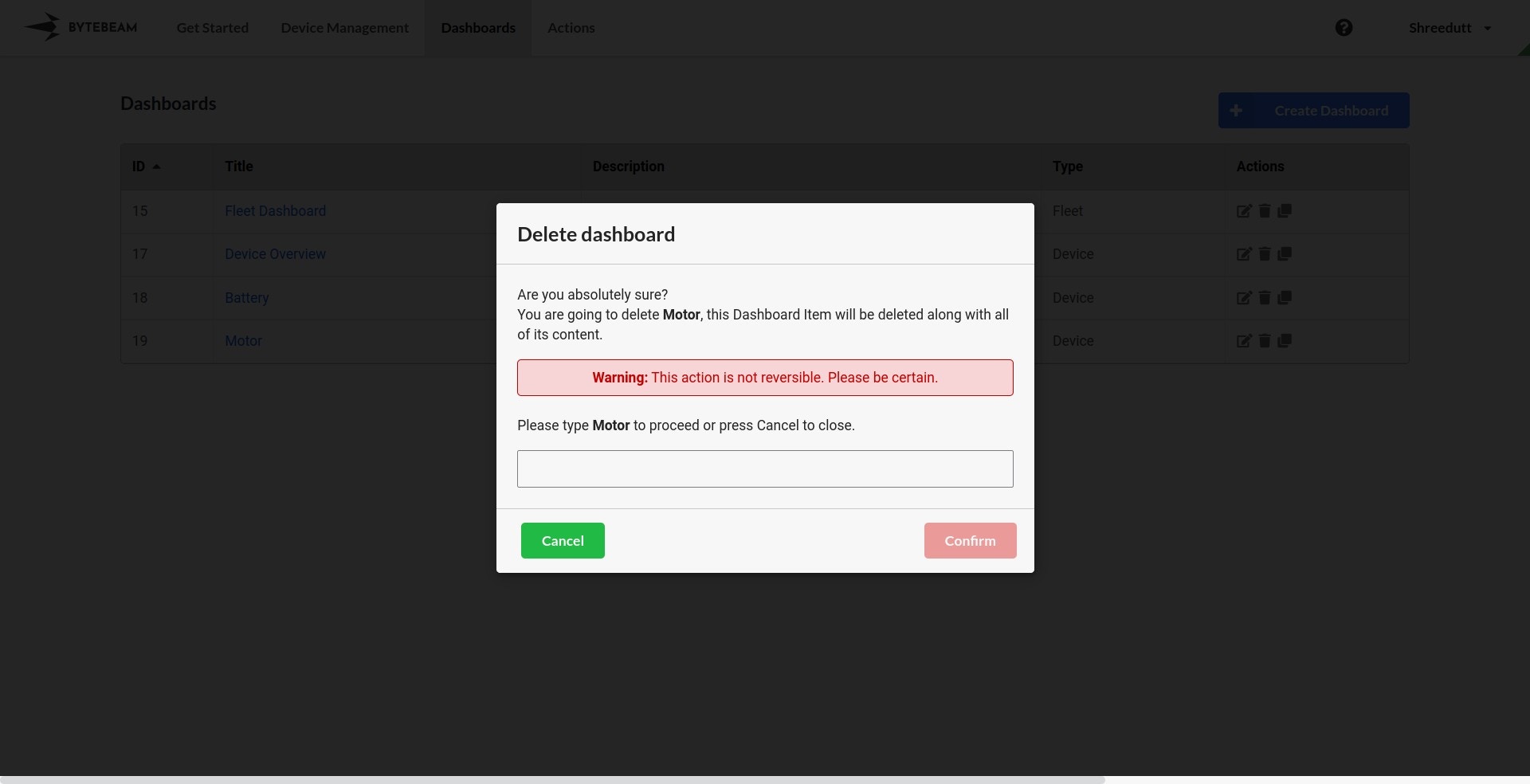
 * A confirmation modal will appear.
* Enter the **exact name** of the dashboard you wish to delete in the input field to confirm.\\
* A confirmation modal will appear.
* Enter the **exact name** of the dashboard you wish to delete in the input field to confirm.\\
 Click on the **Confirm** button to delete the dashboard. This action cannot be undone.
Deleting a dashboard is an **irreversible action**. Ensure that you have selected the correct dashboard before proceeding.
Click on the **Confirm** button to delete the dashboard. This action cannot be undone.
Deleting a dashboard is an **irreversible action**. Ensure that you have selected the correct dashboard before proceeding.