> ## Documentation Index
> Fetch the complete documentation index at: https://bytebeam.io/docs/llms.txt
> Use this file to discover all available pages before exploring further.
# Dashboard History
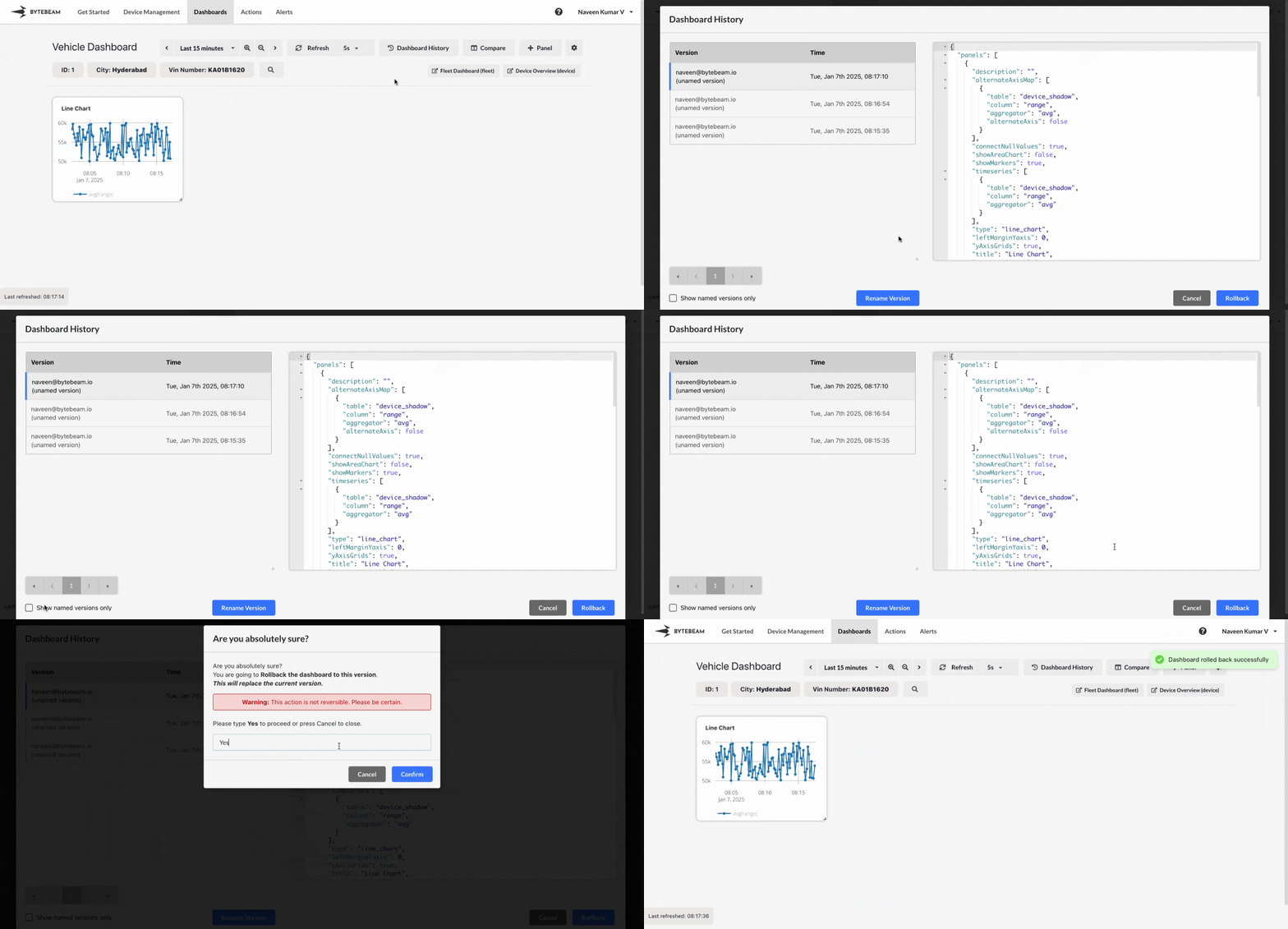
You can use the **Dashboard History** feature which is designed to track all changes made to a dashboard from its creation. With this feature, you can easily restore any previous version of a dashboard, ensuring flexibility and control over your configurations. You can rename versions for easy identification and even undo a previous rollback if needed. On the right side of the Dashboard History view, you’ll find the JSON representation of each version, providing a detailed look at every modification.
## Steps to Use Dashboard History
Go to the **Dashboards** tab in the Bytebeam console and open the dashboard whose history you want to view.
Inside the dashboard, click on the **Dashboard History** option located in the toolbar.\\
 * The Dashboard History view will open, displaying:
* A list of all saved versions of the dashboard with the latest version at the top.
* Each version includes details like the date, time, and user who made the changes.
* The **right panel** shows the JSON representation of the selected version, providing detailed insights into the dashboard's configuration.\\
* The Dashboard History view will open, displaying:
* A list of all saved versions of the dashboard with the latest version at the top.
* Each version includes details like the date, time, and user who made the changes.
* The **right panel** shows the JSON representation of the selected version, providing detailed insights into the dashboard's configuration.\\
 * To rename a specific version for easier identification:
* Click on the **Rename** button next to the version name.
* Enter the new name and save it.\\
* To rename a specific version for easier identification:
* Click on the **Rename** button next to the version name.
* Enter the new name and save it.\\
 * To revert the dashboard to a previous version:
* Click on the **Restore** button for the desired version.
* Confirm the restoration action in the popup.
* You can undo a rollback if needed by restoring the most recent version.
* To revert the dashboard to a previous version:
* Click on the **Restore** button for the desired version.
* Confirm the restoration action in the popup.
* You can undo a rollback if needed by restoring the most recent version.
 * Use the JSON representation on the right side to analyze specific changes made in each version.
* This view provides a detailed breakdown of modifications, ensuring transparency and accuracy.\\
* Use the JSON representation on the right side to analyze specific changes made in each version.
* This view provides a detailed breakdown of modifications, ensuring transparency and accuracy.\\
 The Dashboard History feature ensures you have full control over your configurations and provides flexibility to revert, analyze, or rename versions as required.